Suno Auto Prompter
See It In Action
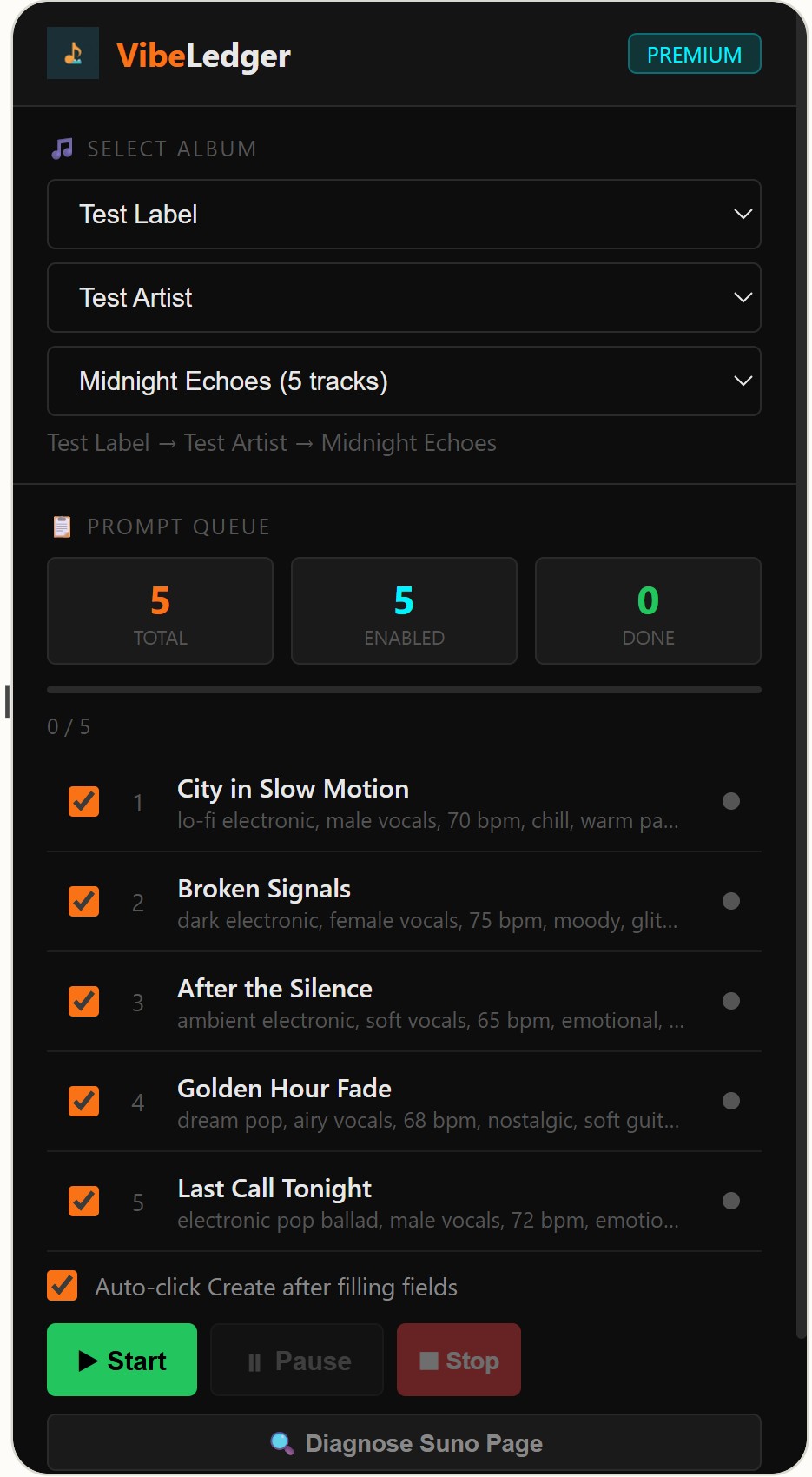
Load an album from VibeLedger, and the extension auto-fills Suno's creation form — lyrics, styles, title, vocal gender, and more. Queue an entire album and walk away.
How It Works
Three steps to automate your entire album on Suno.
Connect & Select
Enter your API token, pick a Label → Artist → Album. Your track queue loads instantly.
Configure & Start
Set Lyrics Mode (Manual or Auto), Vocal Gender, Weirdness, and hit Start. The extension fills every field on Suno.
Auto-Create
Enable Auto-Click Create to generate each track automatically with a delay between songs to avoid bot detection.
Connect & Load Your Album
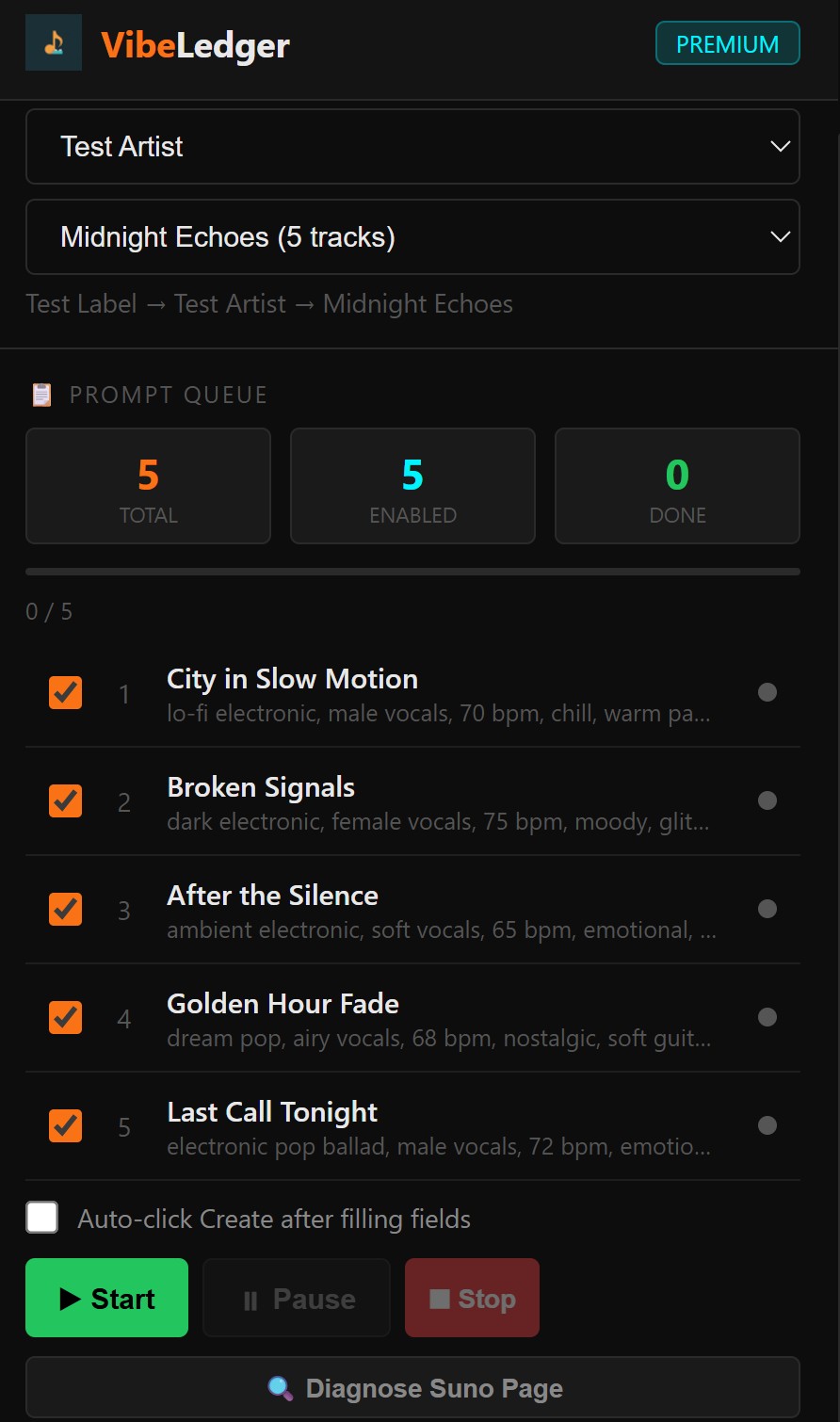
After installing the extension, open the side panel and paste your API token from VibeLedger Settings. Once connected, select your Label, Artist, and Album. All tracks load into the prompt queue with their titles, lyrics, and style prompts ready to go.
- ✓Connects securely via your VibeLedger API token
- ✓Label → Artist → Album hierarchy — just like Mission Control
- ✓Shows track count, style prompts, and individual checkboxes
- ✓Toggle tracks on/off to customize what gets queued
🔍 Diagnose Suno Page
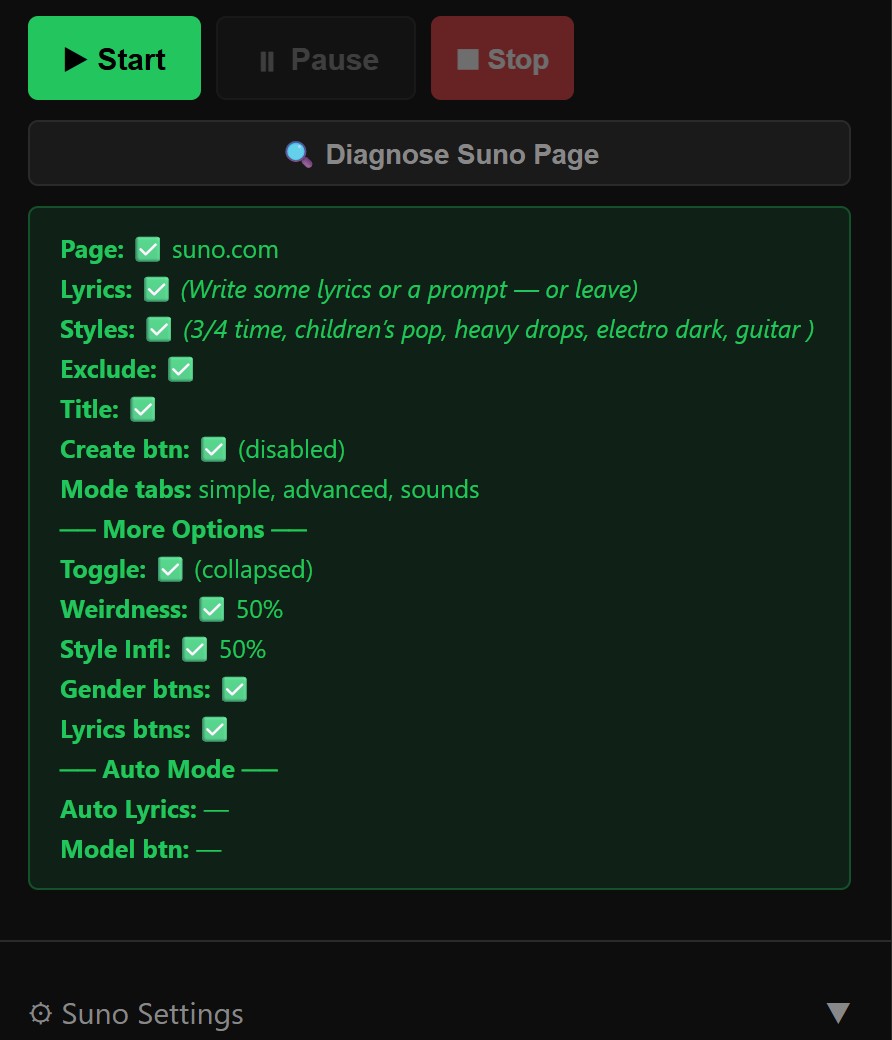
Before you start the queue, always click "Diagnose Suno Page". This is the single most important step. The extension scans Suno's DOM to verify that all form fields are detectable — lyrics, styles, title, Create button, sliders, and more.
✅ All Green = Good to Go
Every field shows a green checkmark — Lyrics, Styles, Exclude, Title, Create button, More Options, Weirdness, Style Influence, Vocal Gender, and Lyrics Mode buttons are all detected.
❌ Red = Suno Changed Something
If any field shows red, Suno may have updated their UI. Do not proceed — the extension may fill the wrong fields or fail silently. Check back for an extension update.
Manual vs. Auto
Choose how the extension handles lyrics on Suno's create page.
Full Lyrics Control
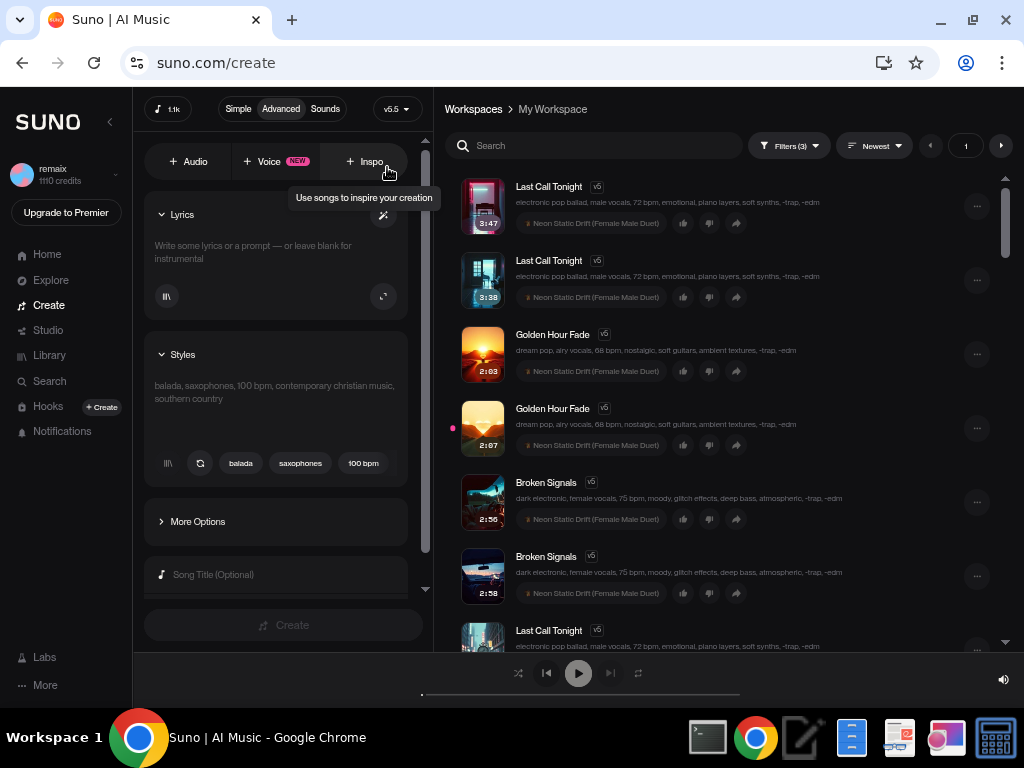
In Manual mode, the extension pastes your complete lyrics directly into Suno's lyrics textarea — exactly as you wrote them in VibeLedger. Suno uses your lyrics word-for-word.
- ✓Your lyrics are pasted exactly as written
- ✓Suno's Advanced mode → lyrics textarea is filled
- ✓Style prompt, title, and vocal gender are also auto-filled
- ✓Best when you've already perfected your lyrics in The Lab
Let Suno Write the Lyrics
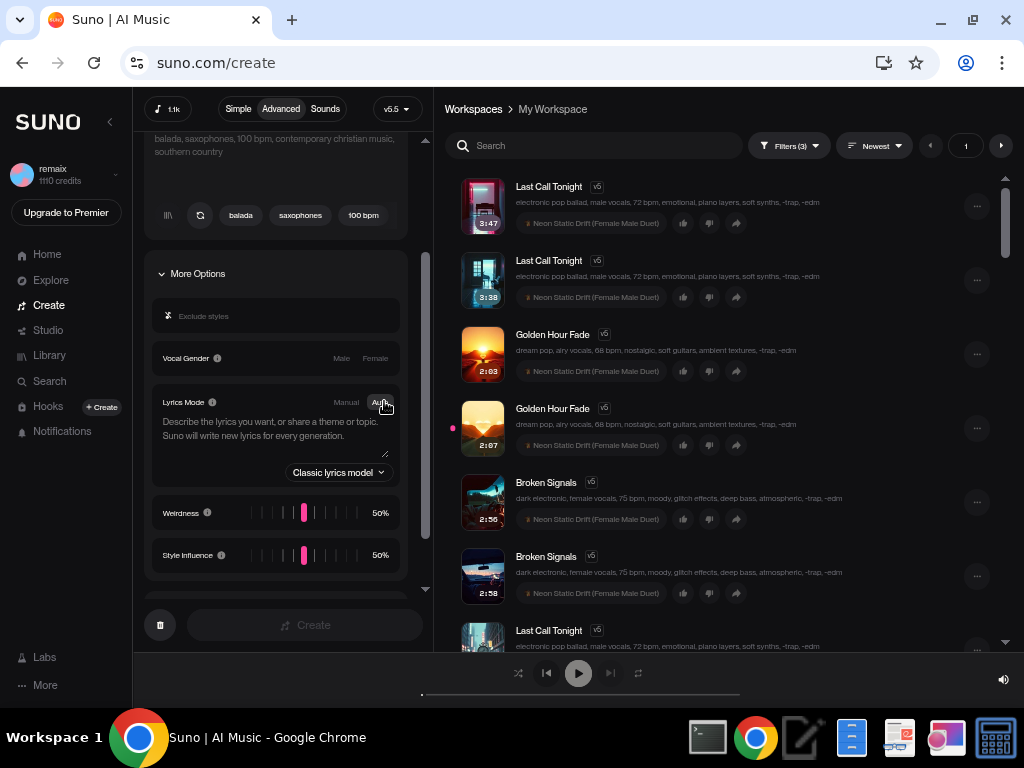
In Auto mode, the extension switches Suno to "Auto" lyrics mode and fills the description field instead. Suno generates fresh lyrics every time based on your description. Perfect for rapid iteration and exploring variations.
- ✓Extension clicks Suno's Auto toggle programmatically
- ✓Fills the "Describe the lyrics you want" field
- ✓Suno writes new lyrics on every generation
- ✓Choose between ReMi (Beta) and Classic lyrics models
Chorus Only & Lyrics Model
Fine-tune how Auto mode handles your lyrics.
☑ Chorus Only
When enabled, the extension extracts only the [Chorus] section from your full lyrics and prepends the instruction: "Use this exact chorus verbatim in the song, do not change any words..."
This is pasted into Suno's Auto description field, so Suno generates fresh verses while keeping your chorus intact — perfect for maintaining a consistent hook across multiple generations.
🎤 Lyrics Model Selector
Choose between Suno's lyrics generation models:
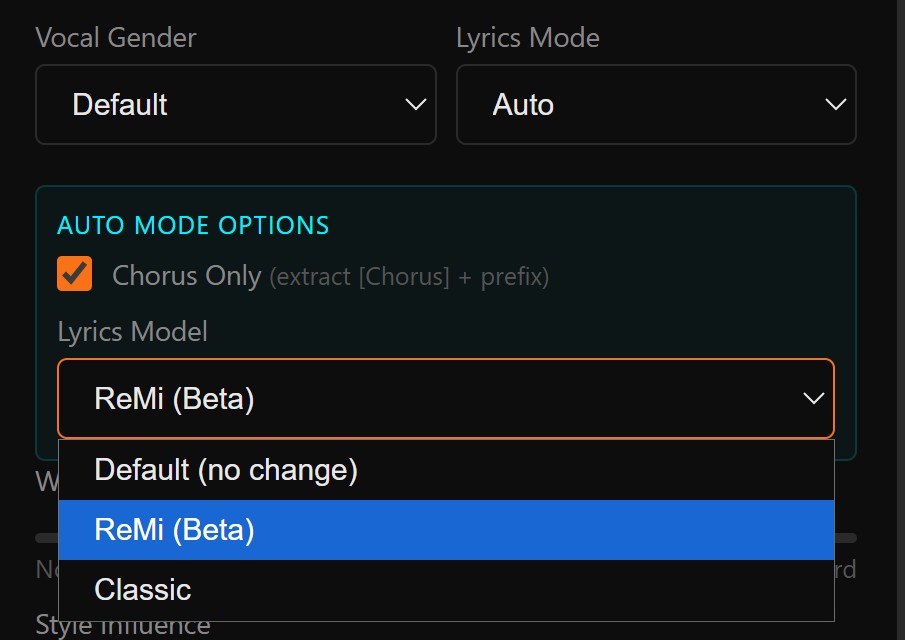
- •Default — No change, uses whatever Suno has selected
- •ReMi (Beta) — Suno's newer lyrics model for richer output
- •Classic — Suno's original lyrics model
🎛️ More Settings
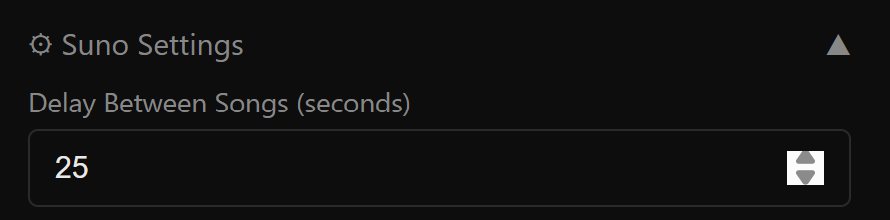
The extension also controls Weirdness, Style Influence, Vocal Gender, Exclude Styles, and the Delay Between Songs — all from the sidepanel.
What Gets Filled on Suno
The extension auto-fills every field in Suno's Advanced creation mode.
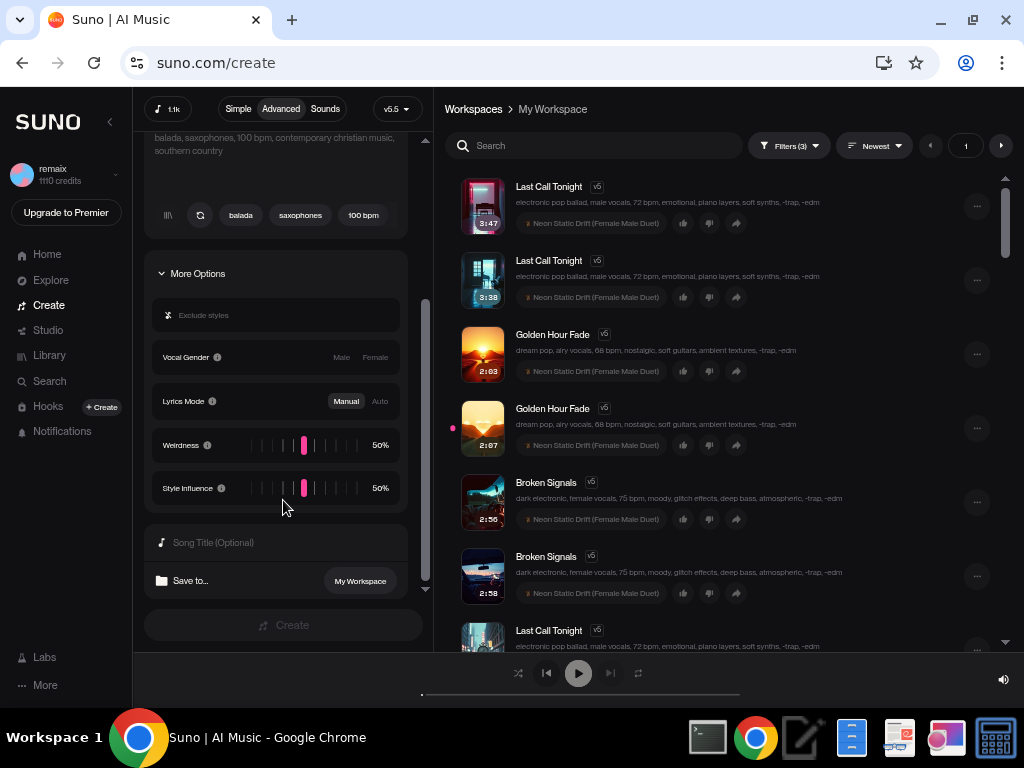
Fields the Extension Controls
⚠️ Important Notes
Read these before your first run.
🔍 Always Run Diagnose First
Click "Diagnose Suno Page" before every session. Suno updates their UI frequently. If any field shows red, do not start the queue — the extension may fill the wrong fields or fail. Wait for an extension update.
⏱️ Set Delay to 20–25 Seconds
We recommend a delay of 20 to 25 seconds between songs. Going faster may flag your account for bot-like behavior. Suno monitors creation speed.
🤖 Bot Verification May Appear
During your first few automated creations, Suno may ask you to verify you're not a bot — typically by matching images or solving a CAPTCHA. This is normal. Simply complete the verification, then the extension will continue where it left off. After the first verification, subsequent runs usually proceed without interruption.
📋 Requirements
- •Chrome browser (extension is Chrome-only)
- •Suno Pro or Premier membership (for creation access)
- •VibeLedger Premium subscription (for extension access)
- •Navigate to
suno.com/createin Advanced mode - •Tracks should have lyrics and style prompts filled in VibeLedger first
Ready to Automate Your Suno Workflow?
Stop copy-pasting. Queue an entire album and let VibeLedger handle the rest.